> ## Documentation Index
> Fetch the complete documentation index at: https://docs.syrto.ai/llms.txt
> Use this file to discover all available pages before exploring further.
# Claude
> Connect Syrto to Claude as a connector.
Claude connects to the [Syrto MCP server](/mcp/introduction) as a connector. Once connected, you can ask about Italian companies in any conversation and Claude will call Syrto for the data.
This works in the Claude desktop app and on claude.ai, and the steps are the same in both.
## Requirements
* A Claude plan that supports connectors - Pro, Max, Team, or Enterprise.
* A Syrto account. [Sign up at syrto.ai](https://syrto.ai) - a free tier is available, and full access to all tools and data requires a paid plan.
## Who does what
Syrto is a **custom** connector rather than one from Claude's public directory, so it has to be added to your workspace before it shows up. That is two separate jobs:
| Action | Who | How often |
| -------------------------- | ------------ | ----------------------------- |
| Add Syrto to the workspace | An **admin** | Once, for the whole workspace |
| Connect your own account | **Anyone** | Once per person |
If Syrto already appears in your connector list, an admin has done the first part - skip to [Connect your account](#connect-your-account).
## Add Syrto to the workspace
This part needs admin rights. If you are not an admin, ask whoever administers your workspace to do it - it is a one-off, and afterwards everyone connects themselves.
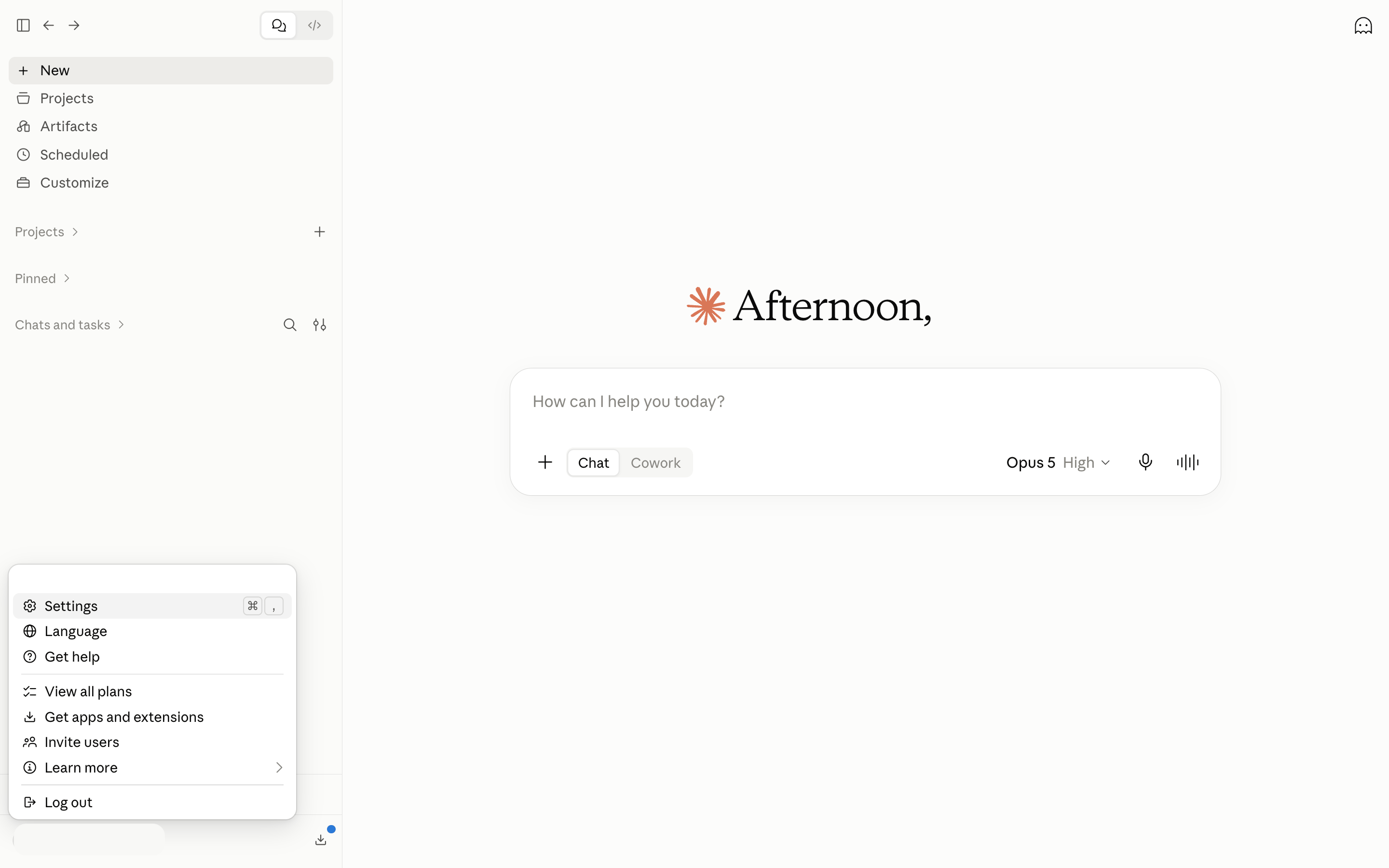
Click your account at the bottom of the left sidebar, then choose **Settings**.
 Select **Connectors** under **Customize**, then click **Browse** at the top right and choose to add a custom connector.
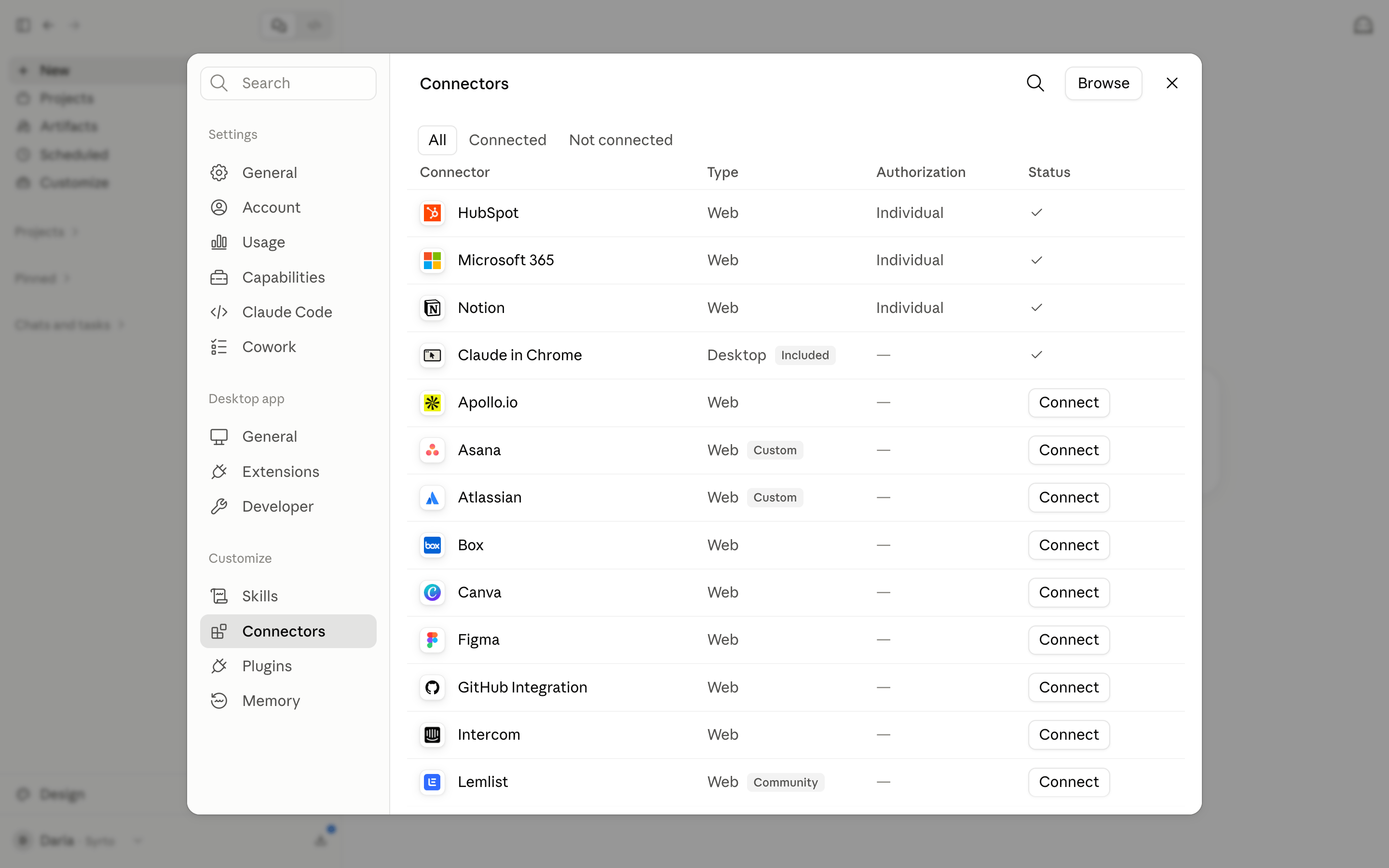 Give the connector the Syrto MCP server URL:
```
https://mcp.syrto.ai/mcp
```
Syrto then appears in the connector list for everyone on the workspace, marked **Custom**.
## Connect your account
Anyone on the workspace can do this - no admin rights needed.
Go to **Settings → Connectors** and scroll to **Syrto**, then click **Connect**.
Give the connector the Syrto MCP server URL:
```
https://mcp.syrto.ai/mcp
```
Syrto then appears in the connector list for everyone on the workspace, marked **Custom**.
## Connect your account
Anyone on the workspace can do this - no admin rights needed.
Go to **Settings → Connectors** and scroll to **Syrto**, then click **Connect**.
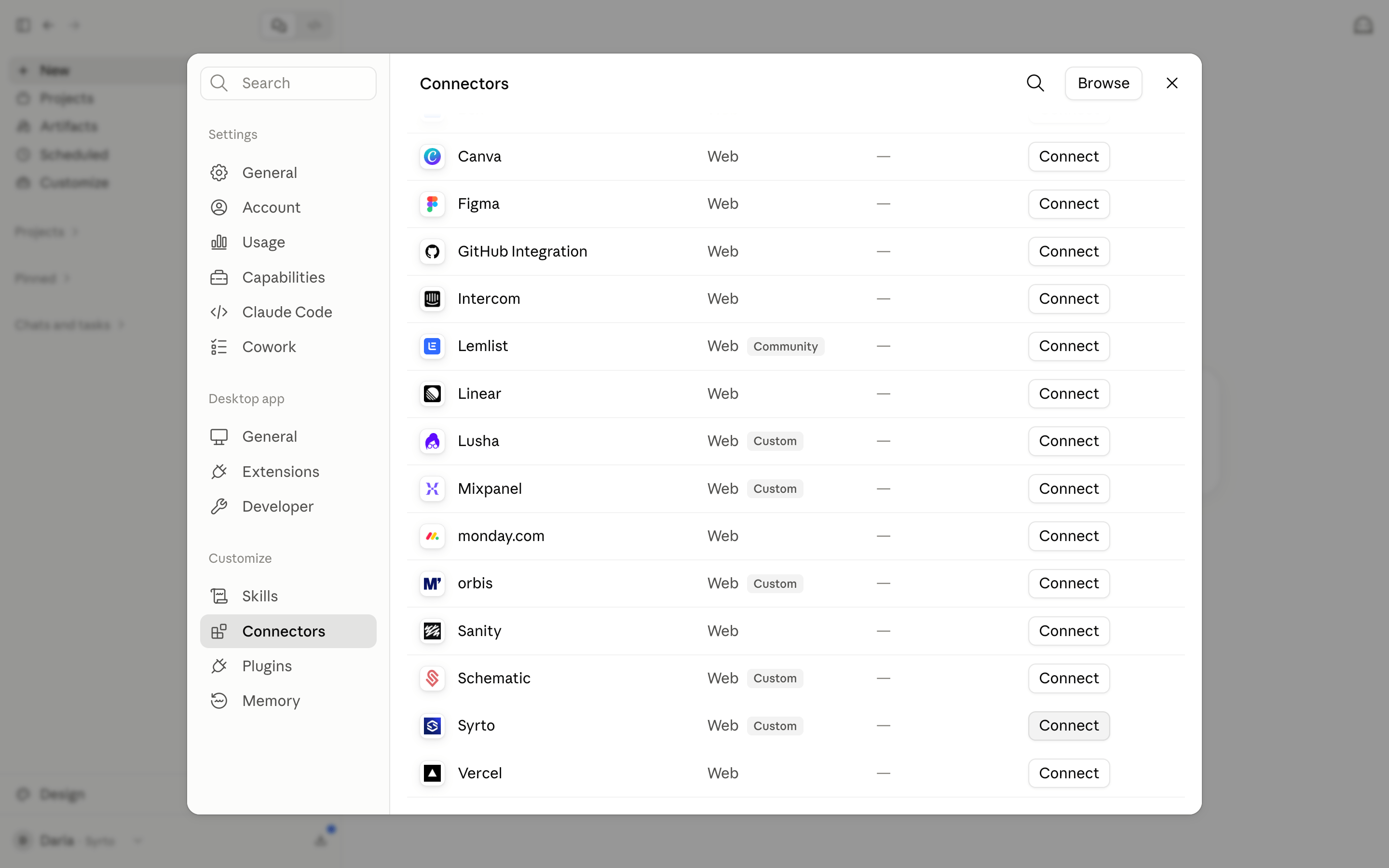 Claude opens the Syrto sign-in flow. Authenticate with your Syrto account and approve access.
Syrto then shows as connected, and Claude can use it. Each person signs in with their own Syrto account, so what they can see follows their own plan.
## Use it in Claude
Ask about Italian companies in plain language and Claude will call Syrto when it needs the data:
* "Give me a full financial analysis of Ferrari."
* "What was ENI's revenue over the last 5 years?"
* "Who owns Barilla and who runs it?"
* "Compare Verallia and Vetreria Etrusca on financial health for 2024."
Because Claude renders MCP Apps, the [radar map](/mcp/tools/radar-map) comes back as an interactive chart you can click rather than a static picture.
## Coverage and limits
* Syrto covers Italian companies only. Amounts are in EUR, and data availability and historical depth vary by company.
* The connector is subject to the same per-account [rate limits](/mcp/setup#rate-limits) as every other Syrto MCP client.
## Other clients
Connect Syrto to Microsoft 365 Copilot, ChatGPT, or any MCP-compatible client.
Claude opens the Syrto sign-in flow. Authenticate with your Syrto account and approve access.
Syrto then shows as connected, and Claude can use it. Each person signs in with their own Syrto account, so what they can see follows their own plan.
## Use it in Claude
Ask about Italian companies in plain language and Claude will call Syrto when it needs the data:
* "Give me a full financial analysis of Ferrari."
* "What was ENI's revenue over the last 5 years?"
* "Who owns Barilla and who runs it?"
* "Compare Verallia and Vetreria Etrusca on financial health for 2024."
Because Claude renders MCP Apps, the [radar map](/mcp/tools/radar-map) comes back as an interactive chart you can click rather than a static picture.
## Coverage and limits
* Syrto covers Italian companies only. Amounts are in EUR, and data availability and historical depth vary by company.
* The connector is subject to the same per-account [rate limits](/mcp/setup#rate-limits) as every other Syrto MCP client.
## Other clients
Connect Syrto to Microsoft 365 Copilot, ChatGPT, or any MCP-compatible client.