> ## Documentation Index
> Fetch the complete documentation index at: https://docs.syrto.ai/llms.txt
> Use this file to discover all available pages before exploring further.
# Microsoft 365 Copilot
> Connect Syrto to Microsoft 365 Copilot as a source.
Syrto is published as a connector for Microsoft 365 Copilot. Once connected, Copilot can query Syrto's financial database on Italian companies from Copilot chat, Teams, and Outlook - no API key, no configuration file.
The connector is backed by the same [Syrto MCP server](/mcp/introduction) used by every other client, so it exposes the same set of tools.
## Requirements
* A Microsoft 365 Copilot licence.
* A Syrto account. [Sign up at syrto.ai](https://syrto.ai) - a free tier is available, and full access to all tools and data requires a paid plan.
## Connect the source
In the Microsoft 365 Copilot app, click the gear icon at the bottom of the left sidebar, then choose **Settings**.
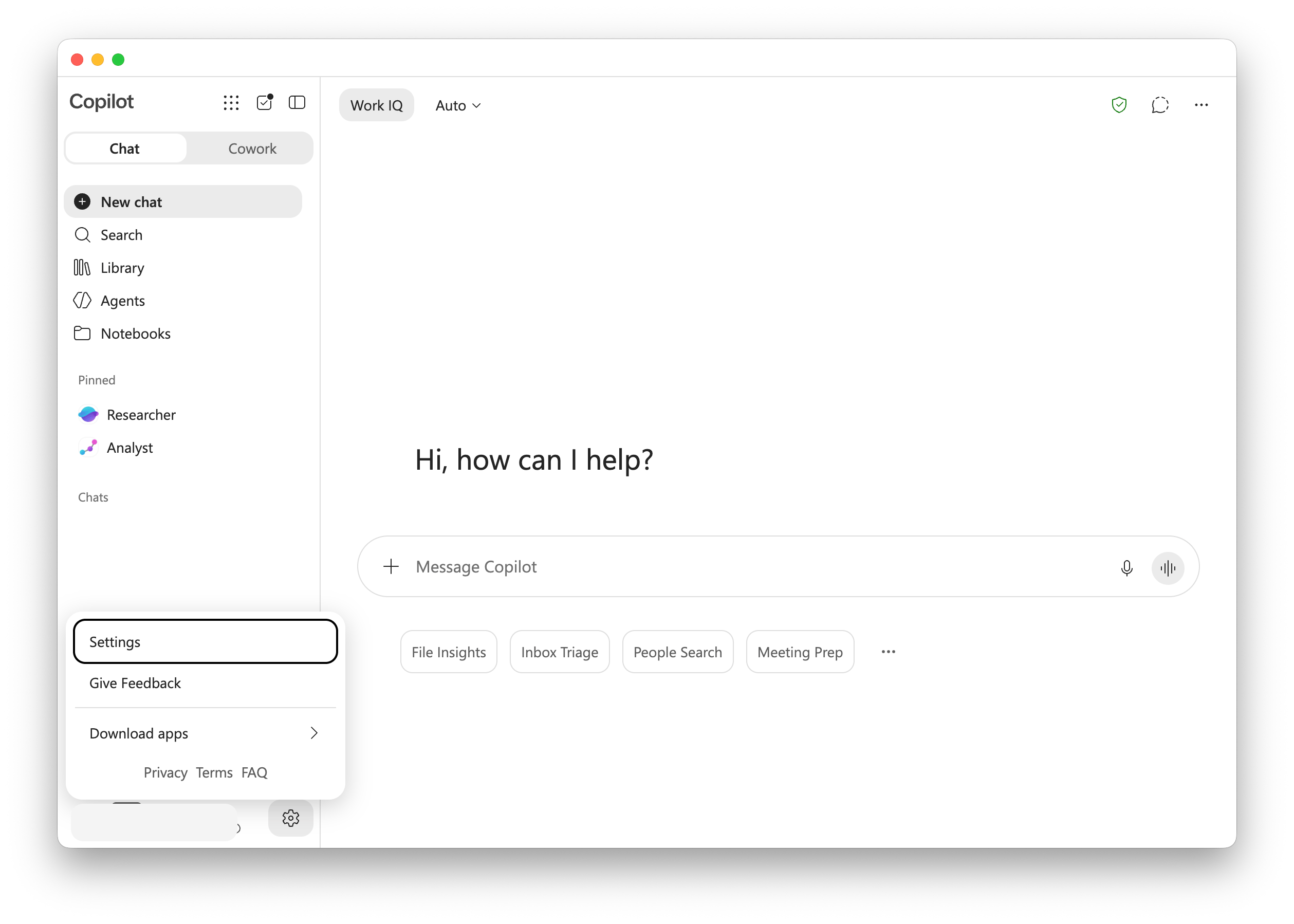 Select **Sources** in the settings sidebar. This page lists the sources Copilot already uses and lets you browse for new ones.
Under **Browse sources**, search for `syrto`. The **syrto-ai** source appears in the results.
Select **Sources** in the settings sidebar. This page lists the sources Copilot already uses and lets you browse for new ones.
Under **Browse sources**, search for `syrto`. The **syrto-ai** source appears in the results.
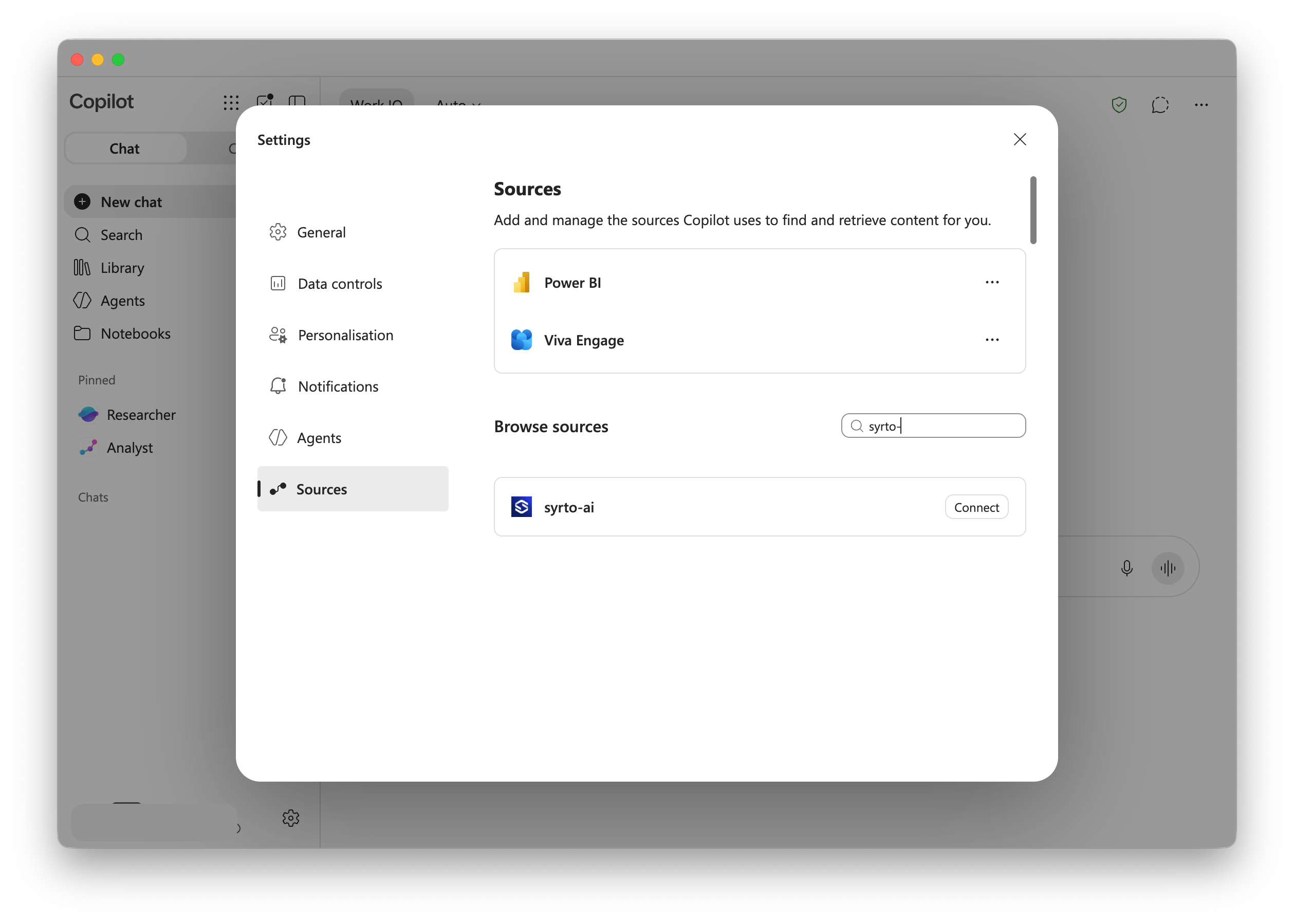 Click **Connect**. Copilot opens the Syrto sign-in flow - authenticate with your Syrto account and approve access.
After signing in, **syrto-ai** moves into the list of connected sources at the top of the **Sources** page. Copilot can now use it.
If **syrto-ai** does not appear under **Browse sources**, your Microsoft 365 administrator may need to allow the connector for your tenant. Contact your IT team, or write to [support@syrto.ai](mailto:support@syrto.ai) if you need help.
## Use it in Copilot
Ask about Italian companies in plain language and Copilot will call Syrto when it needs the data. Some prompts to start with:
* "Give me a full financial analysis of Ferrari."
* "What was ENI's revenue over the last 5 years?"
* "What are the Syrto radar scores for Leonardo?"
* "Generate the balance sheet for Pirelli for 2023."
* "Compare Verallia and Vetreria Etrusca in terms of financial health and performance in 2024."
Responses cite the Syrto record they came from, so you can trace any figure back to its source.
## Coverage and limits
* Syrto covers Italian companies only. Amounts are in EUR, and data availability and historical depth vary by company - missing values are returned as `N/A`.
* The connector is subject to the same per-account [rate limits](/mcp/setup#rate-limits) as every other Syrto MCP client.
## Other clients
Connect Syrto to Claude, ChatGPT, or any MCP-compatible client.
Click **Connect**. Copilot opens the Syrto sign-in flow - authenticate with your Syrto account and approve access.
After signing in, **syrto-ai** moves into the list of connected sources at the top of the **Sources** page. Copilot can now use it.
If **syrto-ai** does not appear under **Browse sources**, your Microsoft 365 administrator may need to allow the connector for your tenant. Contact your IT team, or write to [support@syrto.ai](mailto:support@syrto.ai) if you need help.
## Use it in Copilot
Ask about Italian companies in plain language and Copilot will call Syrto when it needs the data. Some prompts to start with:
* "Give me a full financial analysis of Ferrari."
* "What was ENI's revenue over the last 5 years?"
* "What are the Syrto radar scores for Leonardo?"
* "Generate the balance sheet for Pirelli for 2023."
* "Compare Verallia and Vetreria Etrusca in terms of financial health and performance in 2024."
Responses cite the Syrto record they came from, so you can trace any figure back to its source.
## Coverage and limits
* Syrto covers Italian companies only. Amounts are in EUR, and data availability and historical depth vary by company - missing values are returned as `N/A`.
* The connector is subject to the same per-account [rate limits](/mcp/setup#rate-limits) as every other Syrto MCP client.
## Other clients
Connect Syrto to Claude, ChatGPT, or any MCP-compatible client.