

Requirements
- A ChatGPT plan that supports developer mode and custom MCP plugins - Plus, Pro, Team, Enterprise, or Edu. It is not available on the free plan.
- A Syrto account. Sign up at syrto.ai - a free tier is available, and full access to all tools and data requires a paid plan.
Who does what
Syrto is a custom plugin rather than one from ChatGPT’s public directory, so it has to be added to your workspace before anyone can use it. That is two separate jobs:
If Syrto already appears in your plugin list, an admin has done the first part - skip to Connect your account.
Add the plugin to the workspace
This part needs admin rights. If you are not an admin, ask whoever administers your workspace to do it - it is a one-off, and afterwards everyone connects themselves.
1
Open settings
Click your account at the bottom of the left sidebar, then choose Settings.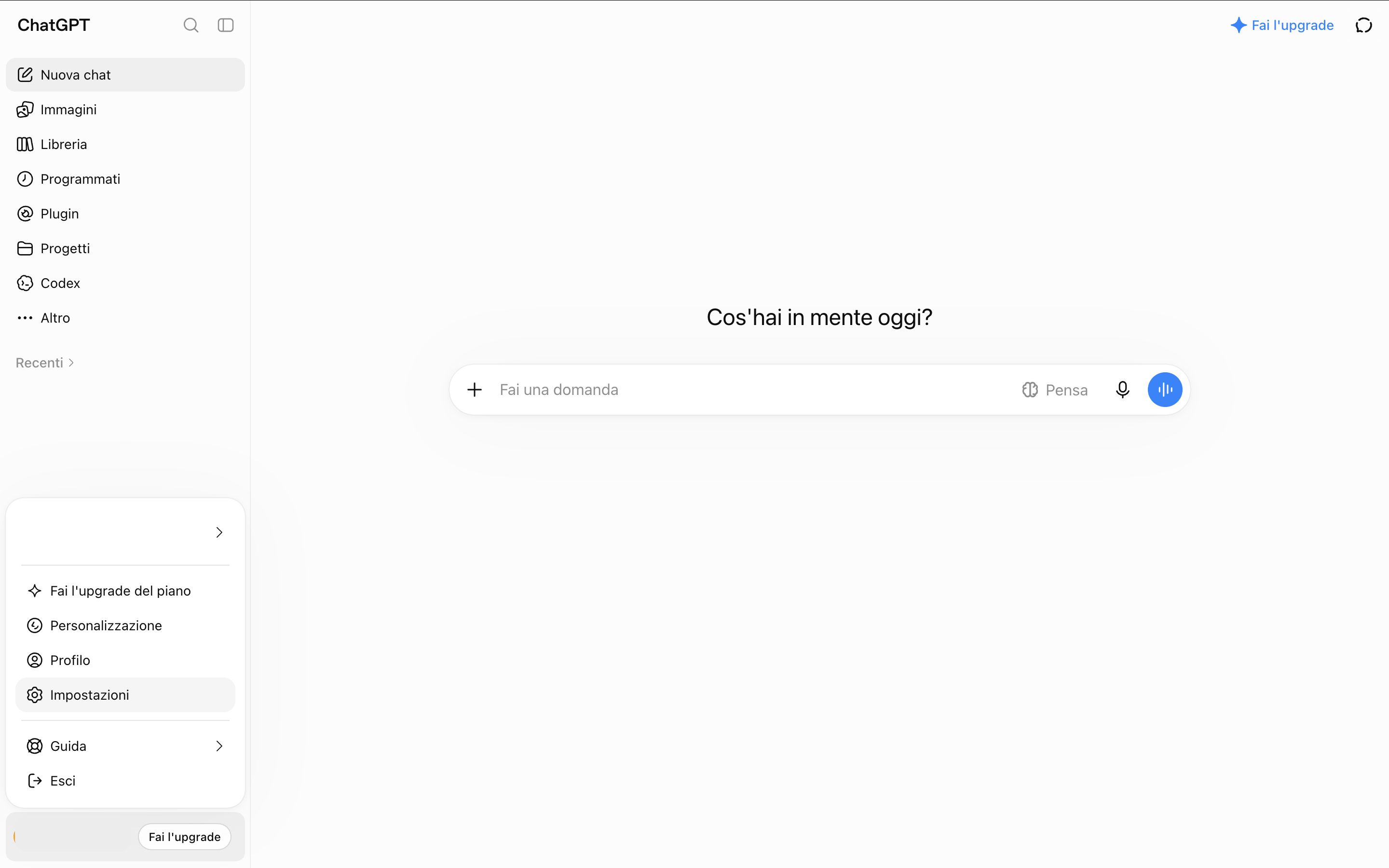
2
Turn on developer mode
Go to Security and login and scroll to Developer mode. Turn it on.This is what lets you add a plugin that is not in the public directory. ChatGPT marks it high risk, because the setting applies to every custom plugin you add afterwards, not just Syrto.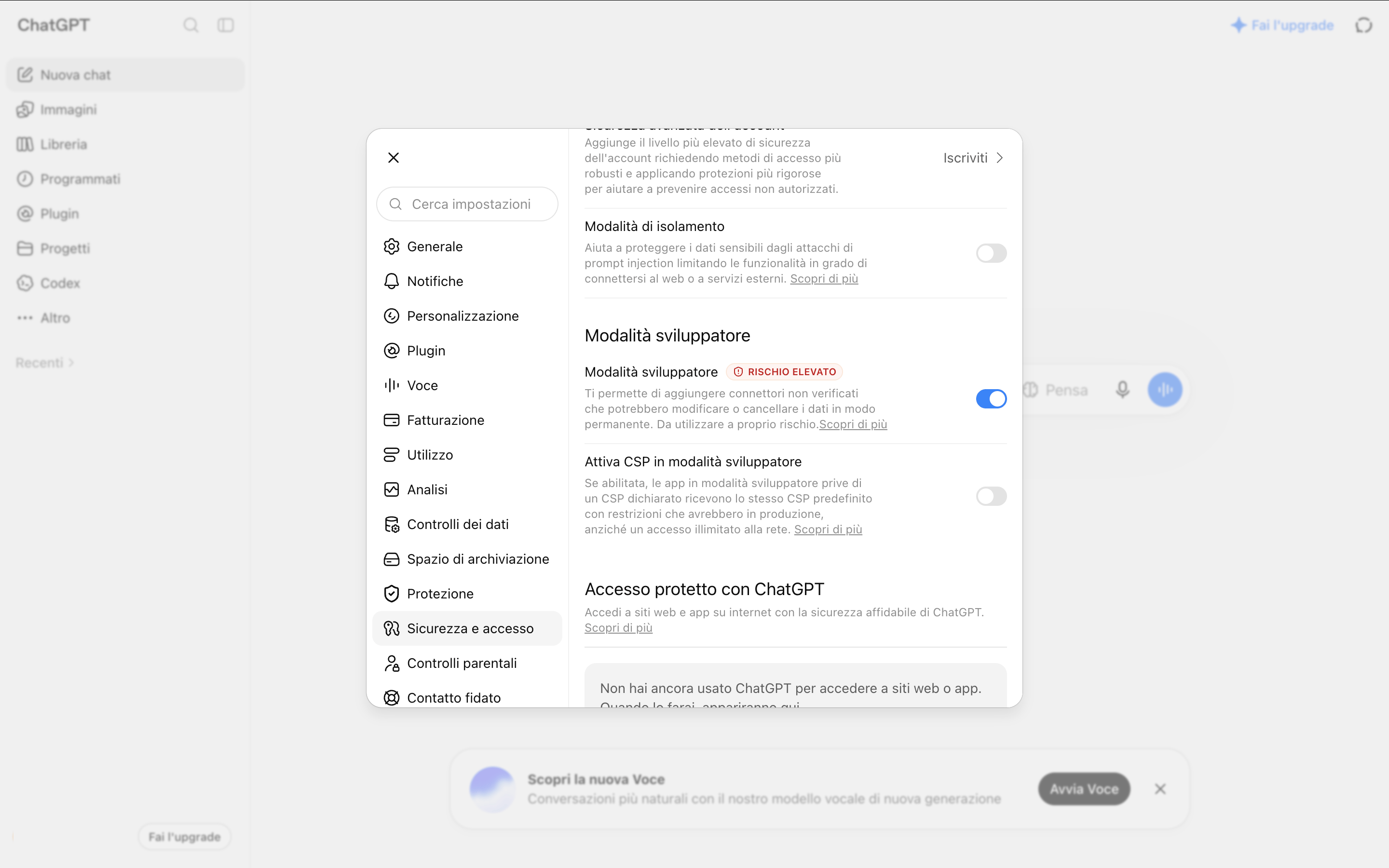
3
Start a new plugin
Open Plugins from the left sidebar and click the + button at the top right of the page.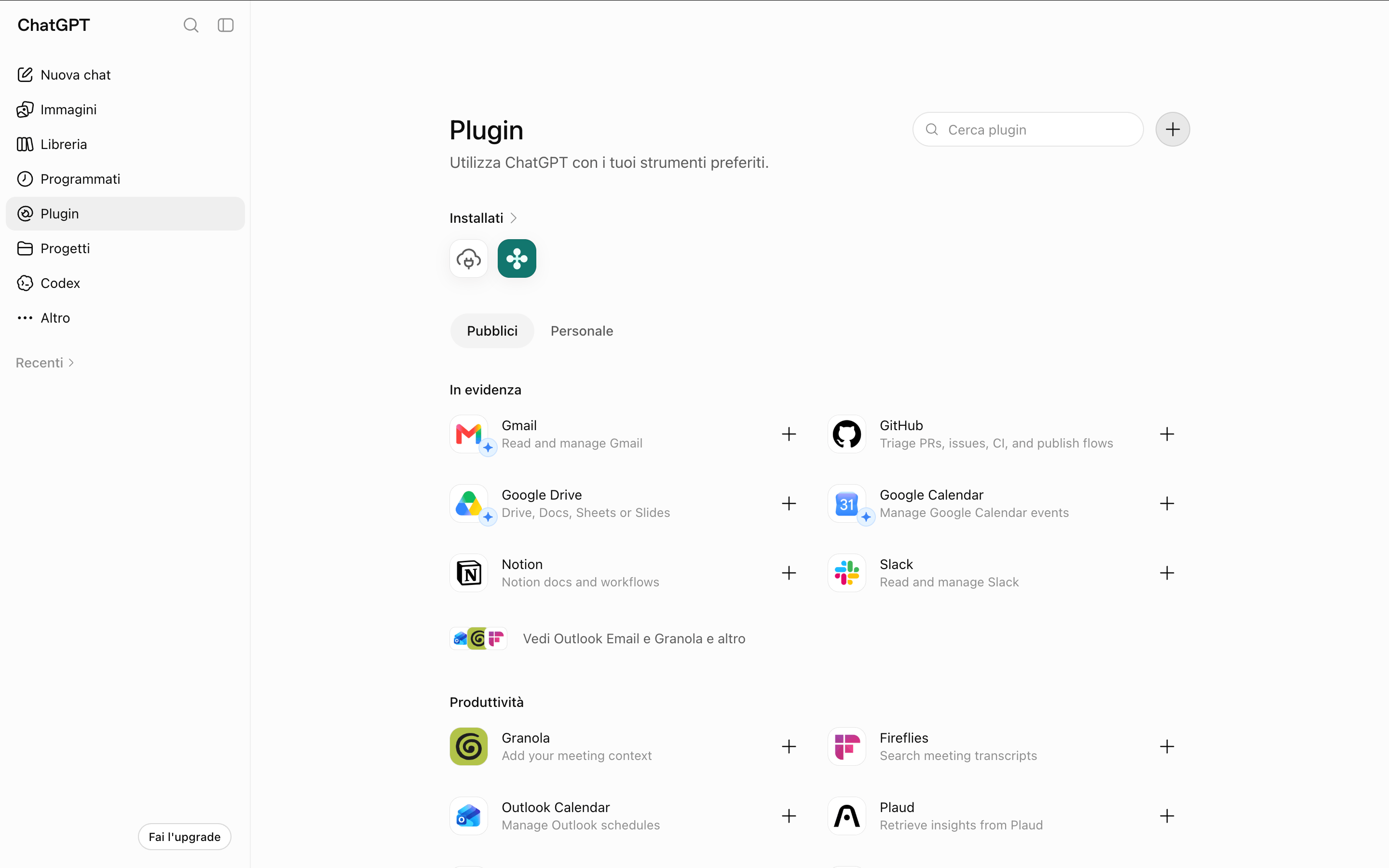
4
Fill in the Syrto server
In the New plugin dialog: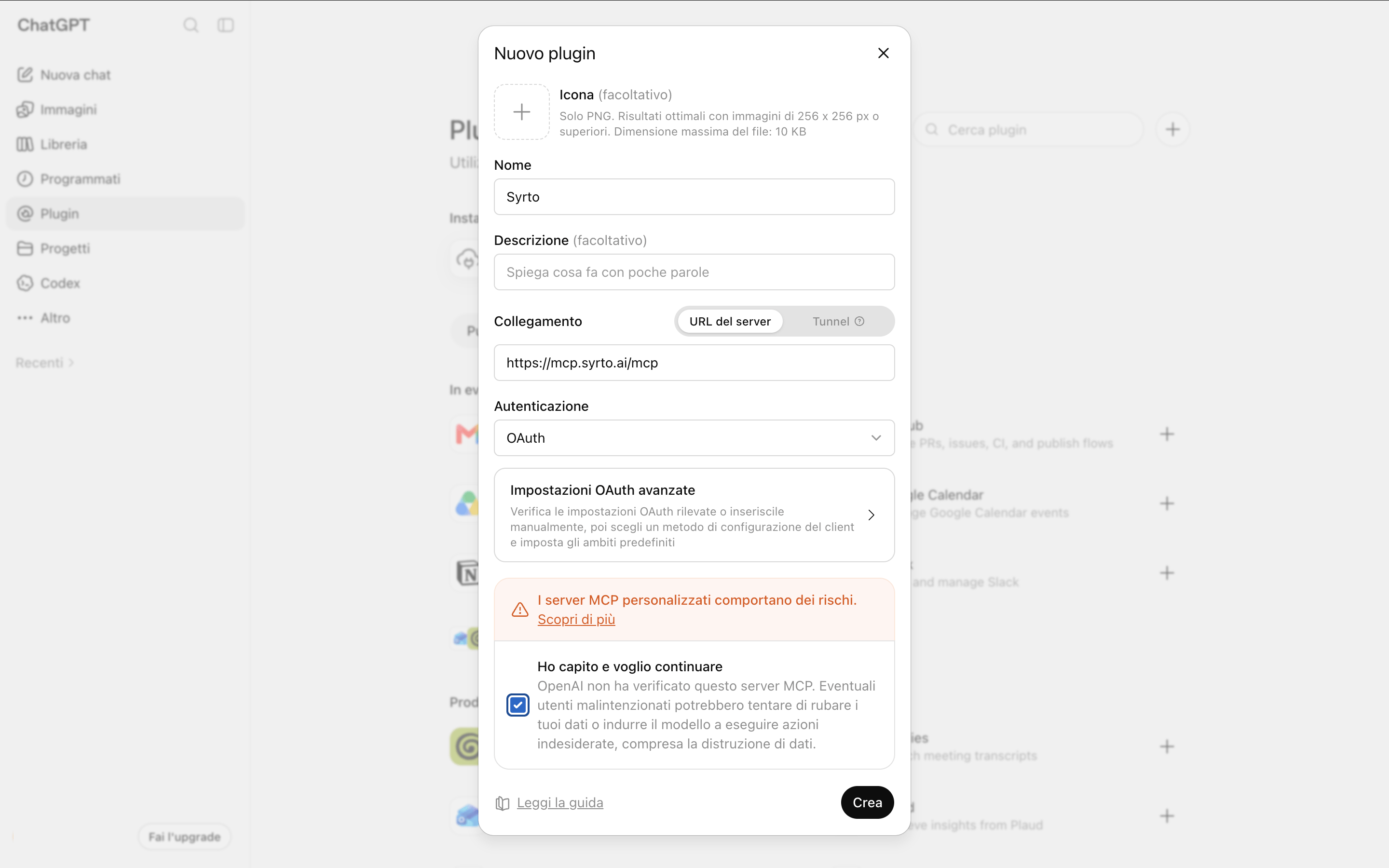
The icon and description are optional. Leave the advanced OAuth settings alone - ChatGPT discovers them from the server.Tick I understand and want to continue to acknowledge the warning, then click Create.
5
Confirm it is installed
Syrto now appears under the installed plugins, both on the Plugins page and under Settings → Plugins.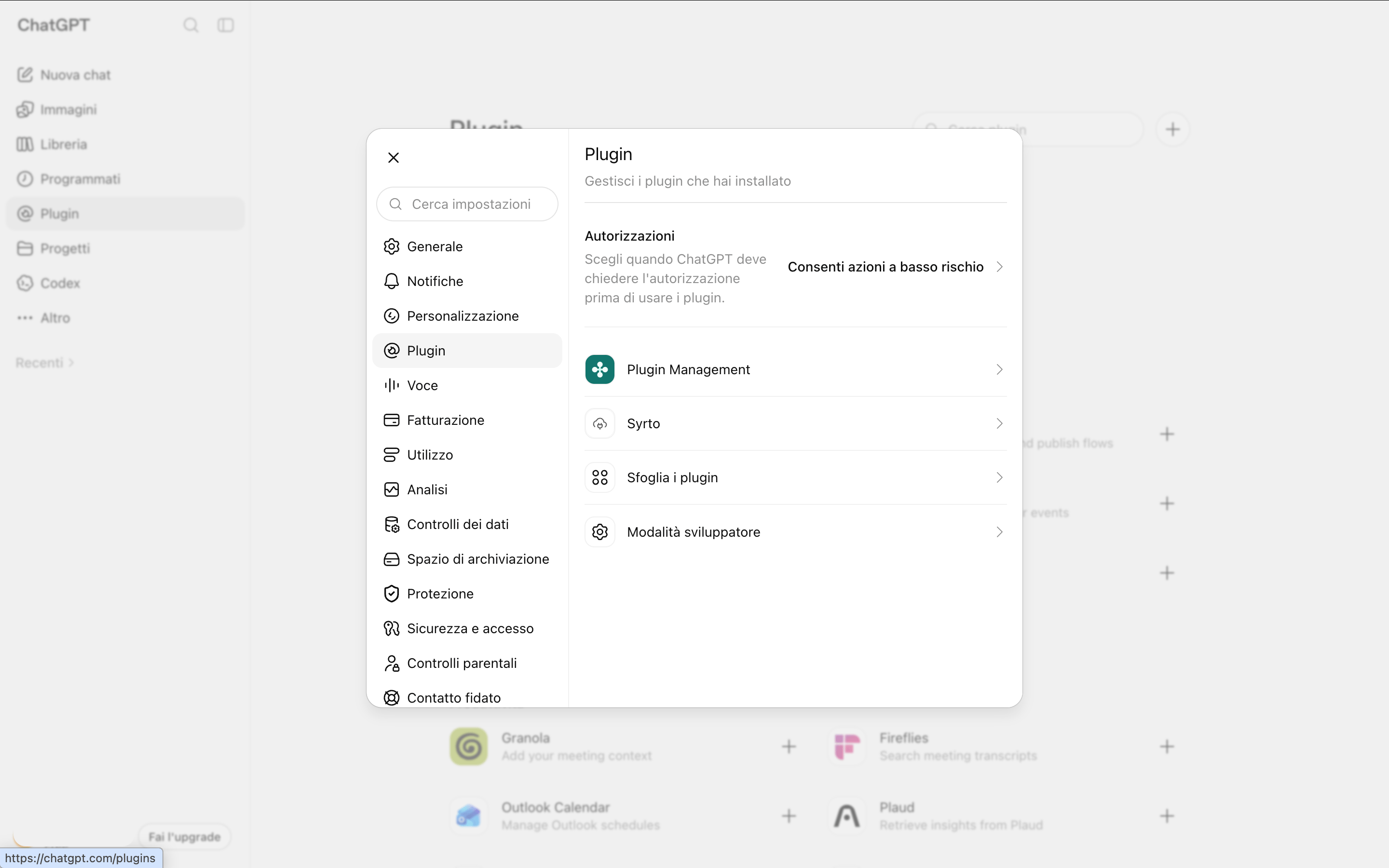
Connect your account
Anyone on the workspace can do this - no admin rights needed. Once an admin has added the plugin, Syrto is listed for everyone. Open it from Settings → Plugins and sign in with your Syrto account when ChatGPT prompts you. Each person signs in with their own Syrto account, so what they can see follows their own plan.What you are accepting
Developer mode exists because ChatGPT cannot vouch for a server it did not review. The warning it shows is about custom MCP servers as a category - the risk is that a malicious server could try to exfiltrate your data or steer the model into destructive actions. Two things are worth knowing before you accept it:- The setting is global. Once developer mode is on, it stays on for every custom plugin you add later, not just Syrto. Turn it off again if you are not actively adding plugins.
- Syrto is read-only. Every Syrto tool retrieves data - none of them write, modify, or delete anything, in your ChatGPT account or in Syrto. Your Syrto account also scopes what the connection can reach: it sees exactly the data your plan entitles you to and nothing else.
Use it in ChatGPT
Ask about Italian companies in plain language and ChatGPT will call Syrto when it needs the data:- “Give me a full financial analysis of Ferrari.”
- “What was ENI’s revenue over the last 5 years?”
- “Who owns Barilla and who runs it?”
- “Find large food companies in Emilia-Romagna with revenue above 100 million.”
Coverage and limits
- Syrto covers Italian companies only. Amounts are in EUR, and data availability and historical depth vary by company.
- The plugin is subject to the same per-account rate limits as every other Syrto MCP client.
Other clients
Set up another client
Connect Syrto to Microsoft 365 Copilot, Claude, or any MCP-compatible client.